


I’ve been using a Windows laptop for many years and it’s a part of my daily routine. I store my work files, family photos and some important notes that I still open from time to time. The laptop runs fine and does what I need. So thoughts about data loss never really occurred to me.
One evening, I finally decided to clean my desktop… Files were spread like clutter, folders stacked on top of other folders, hundreds of temporary files, old screenshots, and other junk files I no longer needed. So I started selecting things slowly and deleting what looked unnecessary. At one point, I pressed delete and moved on, without giving it much thought.
After a while, I needed to a document from one of those folders so I looked at the desktop again. To my horror, the folder was not there anymore! I quickly opened Recycle Bin, praying it would be there but it was empty. Then it dawned on me… I remembered clearing it that same day when I was cleaning my PC.
I froze with frustration and disbelief. The files were not huge in size, but they were important to me. Some of them were not easy to recreate. But I did not want to panic or download some random software so I looked for what options Windows already gives for free, and only then decide what else could help if those options did not work. I’ll share those methods with you in this blog and also my last resort which rescued my files when everything else failed.
Common Causes of Data Loss on Windows
When files vanish from the storage drive, it usually isn’t a big mystery. Common reasons include:
- You or someone else might have deleted or reformatted the drive by mistake
- Pulling out the USB without ejecting can corrupt the file system
- File system corruption
- A virus can delete or hide your data
- In some cases, your storage drive itself can fail
How to Recover Deleted Files for Free?
If you have accidentally deleted files on your system, don’t worry. On Windows you have a lot of options to recover them. One of the first places to check is the Recycle Bin, because chances are your missing files are still there.
- Recover Using Recycle Bin
The Recycle Bin keeps a temporary record of the files you delete. If you accidentally delete your docs, or media files by pressing the Delete key, use the Control + Z shortcut to undo the action. But if a little time has passed by, check the Recycle Bin to locate the file, right-click on the file, and select Restore to return it to its original location.
But this method will not work when you used the Shift + Delete shortcut, removed a file from an external hard drive, or emptied the recycle bin. If this happens, you will have to use other methods below.
- Recover Deleted Files Using Previous Versions
Enable the File History feature on your Windows PC. This helps you easily recover deleted files as well as the previous versions of your files and folders that have been deleted.
- Find the folder where the deleted files were stored.
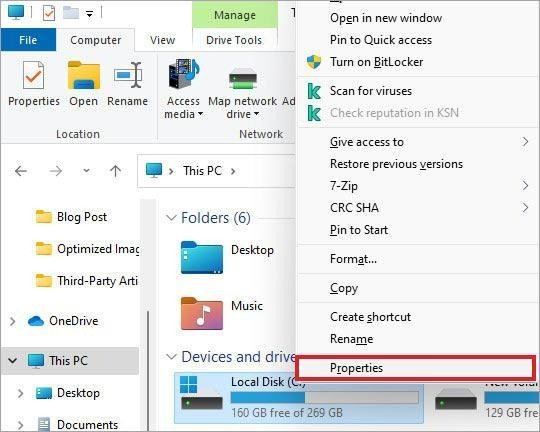
- Right-click on it and select Properties.

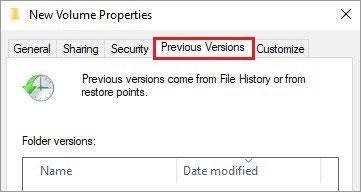
- Go to the Previous Versions tab.

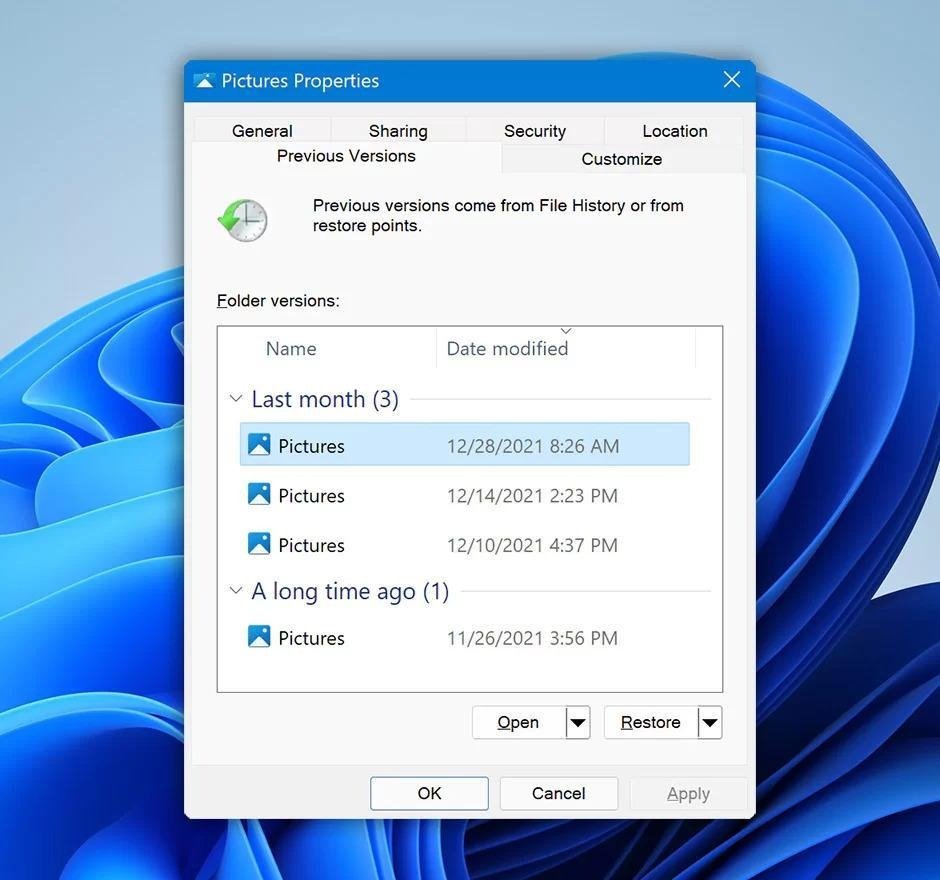
- Choose the version from before your files were deleted. You can click Restore to overwrite just the files that were in the selected version while leaving any new additions intact.
- Alternatively, you can click Restore to…. It will recover the folder to a different location, keeping your current version unchanged.

- Recover Using File History
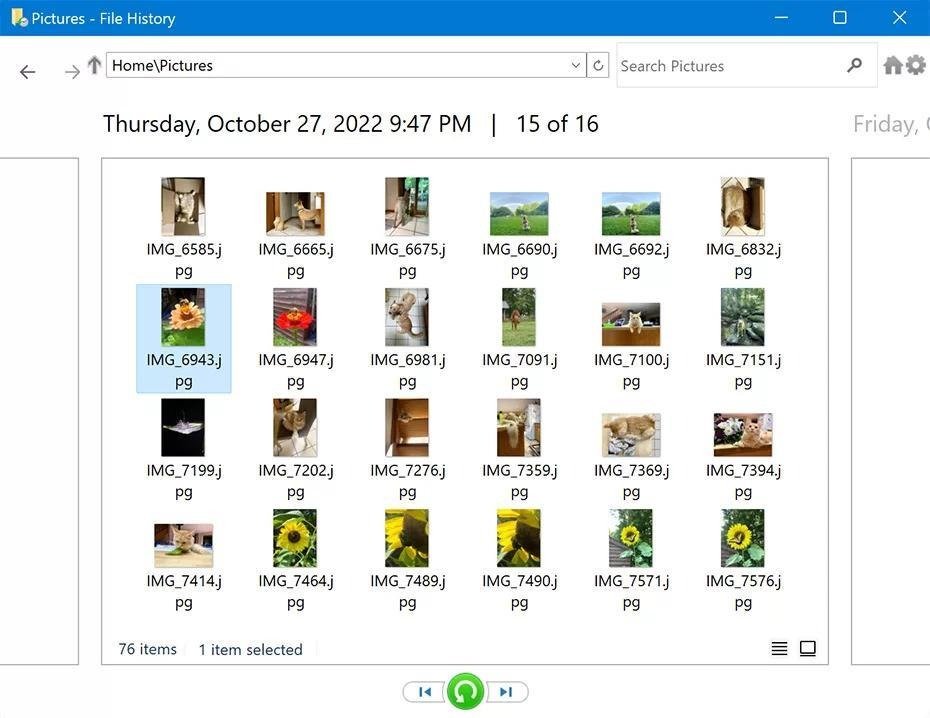
File History is a built-in incremental backup feature which automatically creates backups of your files and folders in essential locations like Libraries, Desktop, Contacts, and Favorites. It keeps several versions of the same file which helps in easily reverting to an older version if needed.
- Type File History in the search bar and press Enter.
- Open the backup folder and go to the location where the deleted files were stored.
- Select the files you want to restore.
- Click the green Restore button to restore the selected files to their original location.

- Recover Using Free Data Recovery Software
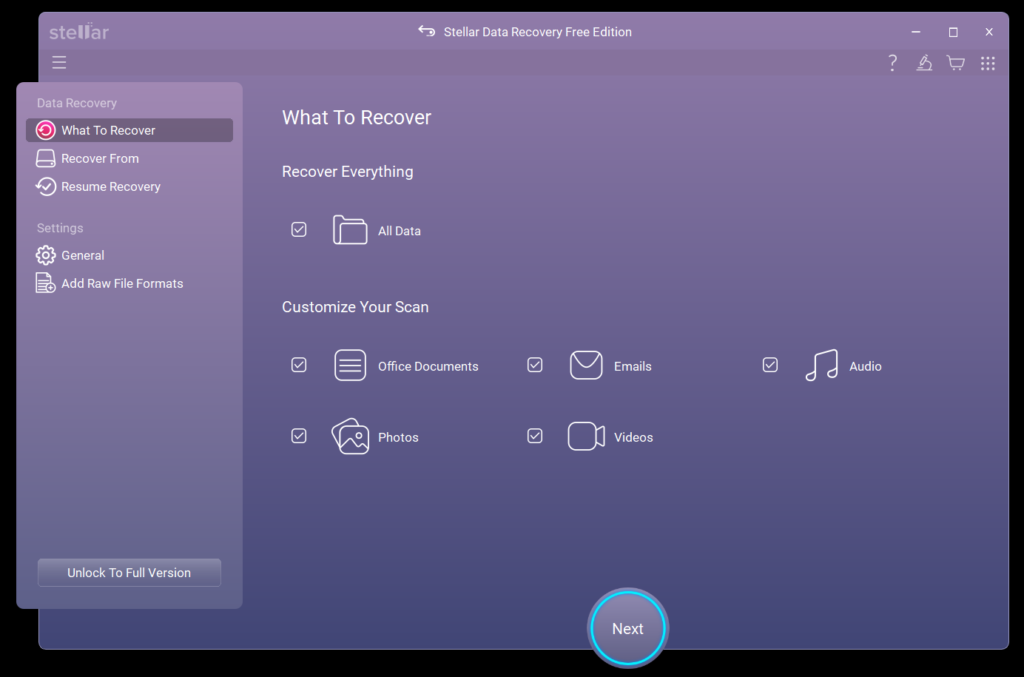
If none of the above free methods works, there’s another option—Stellar Data Recovery Free. It’s a reliable tool that comes with a user-friendly GUI and it specializes in file recovery on Windows. This particular tool can dive deeper into your storage drive’s data, scan those sectors and rebuild those lost files even from formatted or badly corrupt drives.
It supports all popularly-used file types like documents, photos, videos, etc. along with all file systems (NTFS, FAT32, exFAT). With features like deep scan, and file preview under its wings, it definitely succeeds where simpler methods fail. In short, you can use this free data recovery software to restore your files without a second thought.

Summing Up
If you deleted files on Windows, do not panic. First, stop using the drive. Check Recycle Bin and built in Windows options. If those do not help, a recovery tool like Stellar Data Recovery for Windows can help you recover files without much hassle.


We create powerful, insightful content that fuels the minds of entrepreneurs and business owners, inspiring them to innovate, grow, and succeed.